Studio Board: The Ultimate AI Infinite Canvas for Creative Workflows
Studio Board: The Ultimate AI Infinite Canvas for Creative Workflows
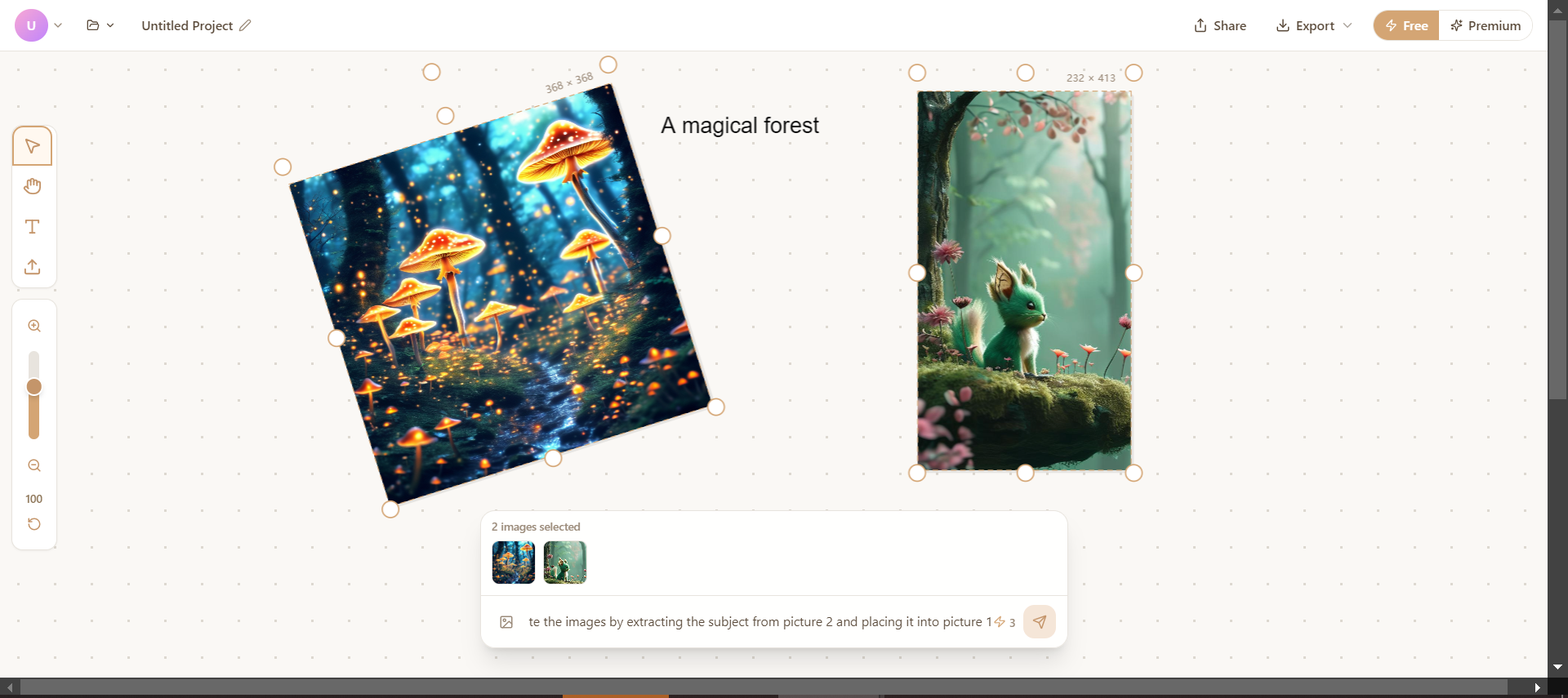
In the world of AI-powered creative tools, Studio Board represents a paradigm shift in how we approach visual content creation. It's not just another image generator or editor—it's an AI infinite canvas workspace that combines image generation, editing, text overlays, and freeform layout into a single, immersive creative environment.
Studio Board puts the entire creative workflow at your fingertips: from generating images with AI to editing them, removing backgrounds, adding typography, and exporting your masterpiece—all within one seamless, infinite canvas experience.
🎨 Ready to Experience Studio Board? Visit our Studio Board and start creating now. Also check out our AI Studio for more AI creative tools! No login required for basic features!
What is Studio Board?
Studio Board is an AI infinite canvas creative workspace that enables users to:
- Generate images with AI using simple text prompts
- Edit images with AI by selecting existing images and providing modification instructions
- Upload local images to incorporate into your compositions
- Remove backgrounds using a local AI model for transparent PNG output
- Add text overlays with customizable fonts, colors, and styles
- Organize freely on an infinite canvas with drag-and-drop positioning
- Export compositions as PNG with transparent, white, or black backgrounds
This tool represents a new category of creative software—one that treats AI not as a separate tool, but as an integrated part of a holistic creative workflow.
Core Features
1. Image Generation & Editing
| Feature | Description |
|---|---|
| AI Image Generation | Generate single AI images via bottom chat input using text prompts |
| AI Image Editing | Select images and input prompts to edit selected images with AI |
| Upload Images | Support uploading local images to the canvas |
| Remove Background | Use local AI model to remove image backgrounds, generating transparent images |
| Download Images | Download individual images to local storage |
2. Canvas Operations
| Feature | Description |
|---|---|
| Infinite Canvas | Endlessly draggable canvas powered by Konva.js |
| Zoom | Supports 25% - 150% zoom range |
| Pan | Drag canvas viewpoint using hand tool |
| Export Canvas | Export entire canvas as PNG (transparent/white/black background options) |
3. Text Features
| Feature | Description |
|---|---|
| Add Text | Click anywhere on canvas with text tool to add text |
| Edit Text | Click text to edit content |
| Text Styling | Modify font size, color, weight, alignment, and more |
4. Project Management
| Feature | Description |
|---|---|
| Auto-Save | Automatically saves canvas state and card positions to database |
| Project Loading | Load saved projects via URL parameter ?project=xxx |
| Guest Mode | Unlogged-in users can use with login prompt for saving |
User Operation Guide
Toolbar (Left Side)
| Tool | Shortcut | Operation |
|---|---|---|
| 🖱️ Pointer Tool | V | Select and drag image/text cards |
| ✋ Hand Tool | H | Drag canvas viewpoint |
| 🔤 Text Tool | T | Click canvas to add text |
| 📤 Upload Image | U | Upload local image to canvas |
Zoom Controls (Left Side)
- Zoom In:
+or= - Zoom Out:
-or_ - Reset View:
R - Drag Slider: Quick zoom level adjustment
Card Operations (Appears When Image Selected)
When an image is selected, an action toolbar appears below the card:
| Button | Function |
|---|---|
| ✏️ Edit | Edit image (opens edit tips panel) |
| ✂️ Remove BG | Remove background |
| ⤡ Extend | Extend image (coming soon) |
| ⬇️ Download | Download image |
| 🗑️ Delete | Delete image |
Common Shortcuts
| Shortcut | Operation |
|---|---|
Delete / Backspace | Delete selected card or text |
Escape | Deselect all |
Bottom Chat Interface
- No images selected: Input prompt to generate new image
- Image(s) selected: Input prompt to edit selected image(s)
- Upload button: Click to upload image
- Credits display: Shows remaining credits
Complete Creative Workflow Example
The following is a complete creative workflow demonstration from start to finish:
Scenario: Creating a "Magic Forest Cottage" Poster
Step 1: Generate First Image (Forest Background)
- Open Studio Board page
- In bottom chat box, type:
A magical forest with glowing mushrooms and fireflies, fantasy art style - Click send button (or press Enter)
- Wait for generation, image appears in canvas center
Step 2: Add Title Text
- Press
Tkey to switch to text tool - Click at top of canvas to create text box
- Type:
Magic Forest - In right text properties panel, adjust style:
- Font size: 48
- Color: Gold (#FFD700)
- Weight: Bold
- Press
Vkey to switch back to pointer tool, drag text to appropriate position
Step 3: Generate Second Image (Cottage)
- In bottom chat box, type:
A cozy wooden cottage in the forest, warm light from windows - Click send to generate new image
- Use pointer tool to drag cottage image to appropriate position on forest background
Step 4: AI Edit Cottage Image (Add Magic Effects)
- Click to select the "cottage" image
- In bottom chat box, type:
Add magical sparkles and glowing runes around the cottage - Click send, AI generates edited new image based on selected image
- New image appears beside original
Step 5: Remove Background (Blend Cottage into Scene)
- Select the edited "cottage" image
- Click Remove BG button below card
- Wait for processing, background-removed image appears to right of original
- Drag background-removed cottage onto forest background to blend it in
Step 6: Add Description Text
- Press
Tkey to switch to text tool - Click at bottom of canvas to add text
- Type:
Where dreams come alive - Adjust style and move to appropriate position
Step 7: Export Artwork
- Click Export button at top right of navigation
- Select background color:
- Transparent - Transparent background
- White - White background
- Black - Black background
- Wait for export completion, PNG file auto-downloads
Quick Workflow Diagram
┌─────────────────────────────────────────────────────────────────┐
│                 Studio Board Creative Workflow                   │
├─────────────────────────────────────────────────────────────────┤
│                                                                  │
│  ┌─────────┐    ┌─────────┐    ┌─────────┐    ┌─────────┐      │
│  │ Generate│ -> │  Edit   │ -> │Remove BG│ -> │  Layout │      │
│  │  Image  │    │  Image  │    │         │    │  Design │      │
│  └─────────┘    └─────────┘    └─────────┘    └─────────┘      │
│       │              │                              │           │
│       v              v                              v           │
│  ┌─────────┐    ┌─────────┐    ┌─────────┐    ┌─────────┐      │
│  │ Upload  │    │  Add    │    │ Adjust  │ -> │  Export │      │
│  │  Image  │    │  Text   │    │ Zoom/Pan │    │ Artwork │      │
│  └─────────┘    └─────────┘    └─────────┘    └─────────┘      │
│                                                                  │
└─────────────────────────────────────────────────────────────────┘
Pro Tips---
Conclusion
Studio Board represents more than just another AI tool—it's a reimagining of the creative workflow for the AI age. By combining image generation, editing, typography, and spatial organization into one seamless infinite canvas, it empowers creators to work more naturally, iterate more freely, and produce professional results faster.
Whether you're a social media content creator, e-commerce seller, designer, educator, or anyone who works with visual content, Studio Board transforms AI from a series of isolated tools into an integrated creative partner.
The future of creative workflows is here, and it's infinite. What will you create on the canvas?
Start Creating Now:
- Studio Board - Jump into the infinite canvas and start creating
- AI Studio - Explore our complete suite of AI creative tools